« Zurück

Simply PW Page

Version:
1.0
State:
Beta
Release Date:
2025/12/02
License:
CC Attribution-NonCommercial-ShareAlike
Authors:
pfreud01
Description language:
EN | DE
Description EN:

Purpose:
SimplyPWPage protects page content with a simple password, without requiring user accounts or groups to be created in WBCE. The module operates as a page module and uses a session to control whether a page is "unlocked." The actual hiding of the content is handled by the template:

Template Integration:

To protect a page with SimplyPWPage, an additional page_content() block is inserted into the template, e.g., block 42 (which has to be defined in the info.php upfront):
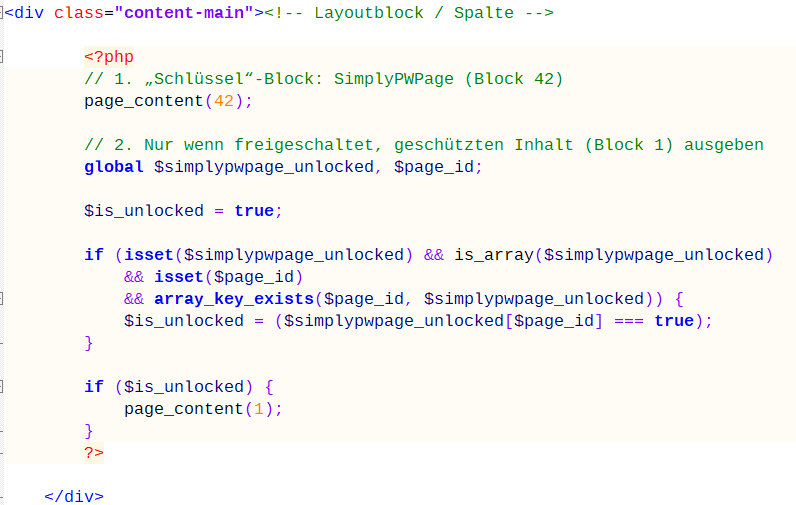
=> See README_DE.txt in the module directory or the ZIP file.

For clarification and better understanding, a version of the "Just the Facts" template, in which the above-mentioned modification has been made, is also attached.

Important:

If SimplyPWPage is not installed or not used on the page, $simplypwpage_unlocked remains undefined → $is_unlocked remains true → Block 1 is displayed normally (full compatibility).

If a SimplyPWPage section is used in block 42 and password protection is configured there, view.php sets $simplypwpage_unlocked[$page_id] to:

- false: as long as no valid password has been entered
- true: after successful password entry
If a SimplyPWPage section exists, but neither a valid local nor a valid global password combination is configured, the module does not output anything in the frontend, and $simplypwpage_unlocked[$page_id] remains set to true → the page behaves as if it were unprotected.

Backend Usage

1. Create a new section on the desired page and select "SimplyPWPage" as the module.

2. Assign block 42 (or the block specified by the template for SimplyPWPage) to this section in the page layout/backend.


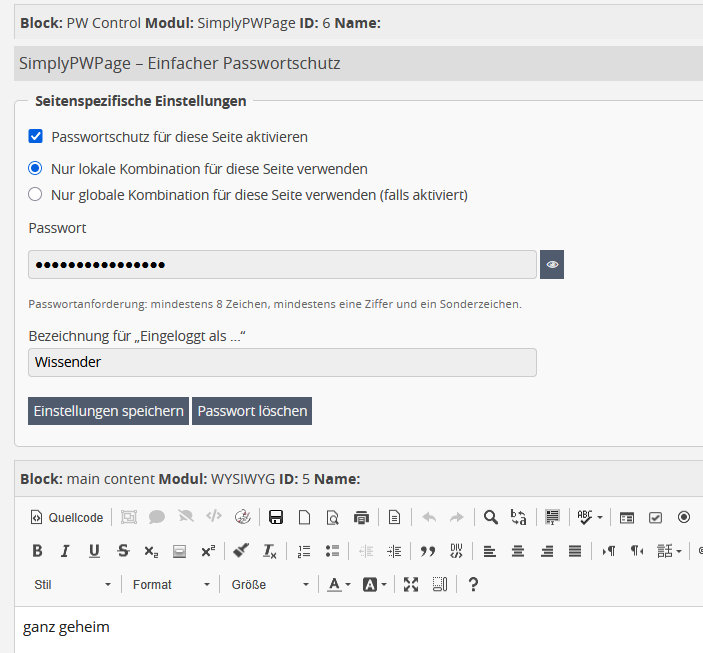
3. In the Modify view of the section:

Checkbox:

  • "Enable password protection for this page" activates or deactivates password protection for this page. If protection is deactivated, no settings are saved, and the SimplyPWPage section has no effect on the frontend.
  • Combination selection (radio buttons):
  • "Use only local combination for this page" → Only a local password will be used for this page.
  • "Use only global combination for this page (if enabled)" → Only the global combination will be used, provided it is enabled and password-protected in the lower section.

Local combination:

  • Password field with placeholders
  • "No password set yet" (if no hash exists)
  • "Password exists - enter again to change" (if a password has already been set)
  • Label for "Logged in as…" (e.g., "Test Group," "Parents' Council").

Buttons:

  • "Save settings" saves all local and global settings.
  • "Delete Password" deletes – depending on the current selection:
    • with "Local combination only…", the local password for this page,
    • with "Global combination only…", the global password.
    • A confirmation dialog appears before deletion.

Note:

  • Local and global passwords can exist simultaneously.
  • The selection "Local combination only…" / "Global combination only…" determines which combination is actually used for this page.
  • A globally set password does not automatically replace the local one, and vice versa – the selection determines which combination is valid for this page.

Global Combination

  • A global combination can be maintained in the lower section of the Modify view:
  • "Activate Global Combination" enables the global variant.
  • "Global Password" + "Global Label" are stored in a separate table.
  • Pages that have "Use global combination only for this page (if activated)" selected in the upper section use this password and label.
  • Pages set to "Local combination only..." use only their own local password and ignore the global combination.

Frontend Behavior

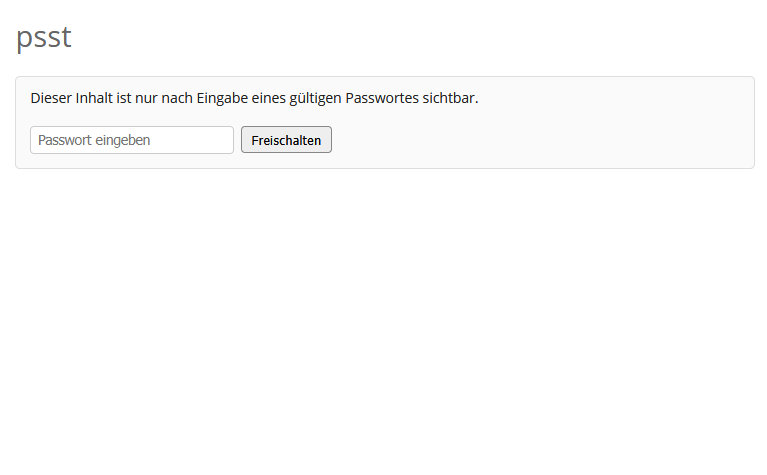
While the page is not yet unlocked:

  • Text: "This content is only visible after entering a valid password."
  • Password field + "Unlock" button
  • An error message appears if the password is incorrect.

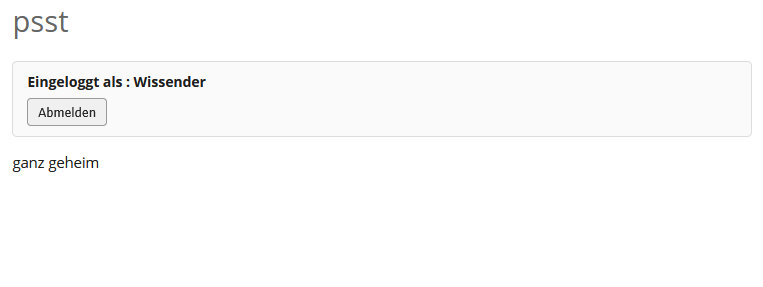
After successful password entry:

Display: "Logged in as XY" (XY = local or global name)

  • Logout button to unlock the page
  • $simplypwpage_unlocked[$page_id] = true → the protected block is displayed in the template.
  • If protection for this page is deactivated in the backend, or if the selected combination (local or global) is not fully configured (no password, globally not enabled, etc.), the module does not output any frontend information, and the page remains unprotected.

Security

  • All database operations are performed using mysqli prepared statements.
  • All forms (backend and frontend) are secured with FTAN (CSRF protection) via getFTAN()/checkFTAN().
  • Inputs are filtered using filter_var() and intval().
  • Output is escaped using `htmlspecialchars(..., ENT_QUOTES, 'UTF-8')`.
  • Passwords are processed using `password_hash()` and `password_verify()`.
  • Policy (easily customizable): minimum 8 characters, minimum 1 letter, minimum 1 number, minimum 1 special character
Description DE:

Zweck:
SimplyPWPage schützt Inhalte einer Seite über ein einfaches Passwort, ohne dass in WBCE Benutzerkonten oder Gruppen angelegt werden müssen. Das Modul arbeitet als Page-Modul und steuert über eine Session, ob eine Seite „freigeschaltet“ ist. Das eigentliche Verstecken der Inhalte erfolgt über das Template:

Template-Integration:
Um eine Seite mit SimplyPWPage zu schützen, wird im Template ein zusätzlicher
page_content()-Block eingefügt, z.B. Block 42 (der zuvor in der info.php des Templates definiert werden muss):


=> Siehe README_DE.txt im Modulverzeichnis bzw. Zip

Zur Verdeutlichung und zum besseren Verständnis hängt hier auch eine Version des Templates "Just the Facts" an, in dem die o.g. Anpassung vorgenommen wurde.

Wichtig:
Wenn SimplyPWPage nicht installiert oder auf der Seite nicht verwendet wird, bleibt $simplypwpage_unlocked undefiniert → $is_unlocked bleibt true → Block 1 wird ganz normal angezeigt (volle Kompatibilität).
Wird eine SimplyPWPage-Section in Block 42 verwendet und ist dort ein Passwortschutz konfiguriert, setzt view.php  $simplypwpage_unlocked[$page_id] auf:
- false: solange noch kein gültiges Passwort eingegeben wurde
- true : nach erfolgreicher Passworteingabe
Ist zwar eine SimplyPWPage-Section vorhanden, aber weder eine gültige lokale noch eine gültige globale Kombination konfiguriert, gibt das Modul im Frontend keinerlei Ausgabe aus und $simplypwpage_unlocked[$page_id] bleibt/steht auf true → die Seite verhält sich wie ungeschützt.

Benutzung im Backend
1. Auf der gewünschten Seite eine neue Section anlegen und als Modul „SimplyPWPage“ auswählen.

2. Dieser Section im Seiten-Layout/Backend den Block 42 zuweisen (oder den Block, den das Template für SimplyPWPage vorsieht).

3. In der Modify-Ansicht der Section:

Checkbox :

  • „Passwortschutz für diese Seite aktivieren“  aktiviert bzw. deaktiviert den Schutz für diese Seite. Ist der Schutz deaktiviert, werden keine Einstellungen gespeichert und die SimplyPWPage-Section hat keinen Einfluss auf das Frontend.
  • Auswahl der Kombination (Radio-Buttons):
    • „Nur lokale Kombination für diese Seite verwenden“ → Es wird ausschließlich ein lokales Passwort für diese Seite genutzt.
    • „Nur globale Kombination für diese Seite verwenden (falls aktiviert)“ → Es wird ausschließlich die globale Kombination verwendet, sofern sie im unteren Bereich aktiviert und mit Passwort versehen ist.

Lokale Kombination:

  • Passwortfeld mit Platzhaltern
    • „Noch kein Passwort gesetzt“ (wenn noch kein Hash vorhanden ist)
    • „Passwort vorhanden – zum Ändern neu eingeben“ (wenn bereits ein Passwort gesetzt ist)
  • Bezeichnung für „Eingeloggt als …“ (z.B. „Testgruppe“, „Elternbeirat“).

Buttons:

  • „Einstellungen speichern“  speichert alle lokalen und globalen Einstellungen.
  • „Passwort löschen“ löscht – je nach aktueller Auswahl:
    • bei „Nur lokale Kombination …“ das lokale Passwort dieser Seite,
    • bei „Nur globale Kombination …“ das globale Passwort.
  • Vor dem Löschen erscheint jeweils ein Bestätigungsdialog.

Hinweis:

  • Lokales und globales Passwort können parallel existieren.
  • Welche Kombination tatsächlich für diese Seite verwendet wird, entscheidet ausschließlich die Auswahl „Nur lokale Kombination …“ /„Nur globale Kombination …“.
  • Ein global gesetztes Passwort ersetzt das lokale nicht automatisch und umgekehrt – die Auswahl legt fest, welche Kombination für diese Seite gültig ist.

Globale Kombination
Im unteren Bereich der Modify-Ansicht kann eine globale Kombination gepflegt werden:

  • „Globale Kombination aktivieren“ schaltet die globale Variante frei.
  • „Globales Passwort“ + „Globale Bezeichnung“ werden in einer separaten Tabelle gespeichert.
  • Seiten, die in der oberen Auswahl auf „Nur globale Kombination für diese Seite verwenden (falls aktiviert)“ stehen, nutzen dieses Passwort und Label.
  • Seiten, die auf „Nur lokale Kombination …“ stehen, verwenden ausschließlich ihr eigenes lokales Passwort und ignorieren die globale Kombination.

Verhalten im Frontend
Solange die Seite noch nicht freigeschaltet ist:

  • Text: „Dieser Inhalt ist nur nach Eingabe eines gültigen Passwortes sichtbar.“
  • Passwortfeld + Button „Freischalten“
  • Bei falschem Passwort erscheint eine Fehlermeldung.

Nach erfolgreicher Passworteingabe:

  • Anzeige: „Eingeloggt als XY“ (XY = lokale oder globale Bezeichnung)
  • Logout-Button, der die Freischaltung wieder aufhebt
  • $simplypwpage_unlocked[$page_id] = true → der geschützte Block wird im Template ausgegeben.
     

Wird der Schutz für diese Seite im Backend deaktiviert oder ist die gewählte Kombination (lokal oder global) nicht vollständig konfiguriert (kein Passwort, global nicht aktiviert etc.), gibt das Modul keinerlei Frontend-Ausgabe aus und die Seite bleibt ungeschützt.

Sicherheit
  • Alle Datenbankoperationen laufen über mysqli-Prepared Statements.
  • Alle Formulare (Backend und Frontend) sind mit FTAN (CSRF-Schutz) über getFTAN()/checkFTAN() abgesichert.
  • Eingaben werden mit filter_var() und intval() gefiltert.
  • Ausgaben werden mit htmlspecialchars(..., ENT_QUOTES, 'UTF-8') geescaped.
  • Passwörter werden mit password_hash() und password_verify() verarbeitet.
  • Policy (leicht anpassbar): mindestens 8 Zeichen, mindestens 1 Buchstabe, mindestens 1 Ziffer, mindestens 1 Sonderzeichen
Slider picture Slider picture Slider picture